Managing Project History
What is Managing Project History?
Git records every change made on a repository as a list of commits. This page will focus on when you have made a commit (could be 30 seconds ago, or 3 weeks ago), and decide that you don’t want those changes.
As long as it’s not sensitive, keeping all project history is a good idea as it preserves the progress of the repository and means if you change your mind in the future, all the history is still there.
Git Revert vs Git Reset
There are two main options for undoing previous commits: Git Revert and Git Reset
Git Revert
Creates a new commit that reverses changes previously made and applies to the branch. You can see the changes that were made and then removed in the history.
Git revert is considered the soft option as it reverts the changes but leaves them in the history.
A good option if you’re trying to roll back on a change that hasn’t worked to a previous, stable version of the code.
You should use Git Revert if:
If you want to undo an immediate change (e.g., the introduction of a bug or mistake) or revisit an older version of the project.
You’re happy to retain all information in the history of the project.
Git Reset
Rolls back the branch to an earlier point and removes any commits made after that.
Git reset is considered the hard option as it scrubs the history, as if it never happened.
This is the riskier option and therefore is much harder to do. We recommend reserving it only for when things have gone really (really) wrong.
You should use Git Reset if:
You accidentally committed sensitive information which should be in the GitIgnore (e.g., sensitive data, personal login information, passwords, secrets etc).
You need all the information to be scrubbed from the repository completely.
Which one to use
Because Git Reset is the more complex and higher‑risk option, this guidance will focus solely on Git Revert.
Ensuring you adhere to the Git Ignore guidance and training, you should never need to use Git Reset, but mistakes can happen. See the GitHub Basics Concepts tab for more info
Git Revert Practical Example
Situation: The team has a regular report showing performance for the 6 ICBs. We want to update the report for 4 ICBs, so we:
1) Commit the changes
2) QA
3) Merge the changes into main
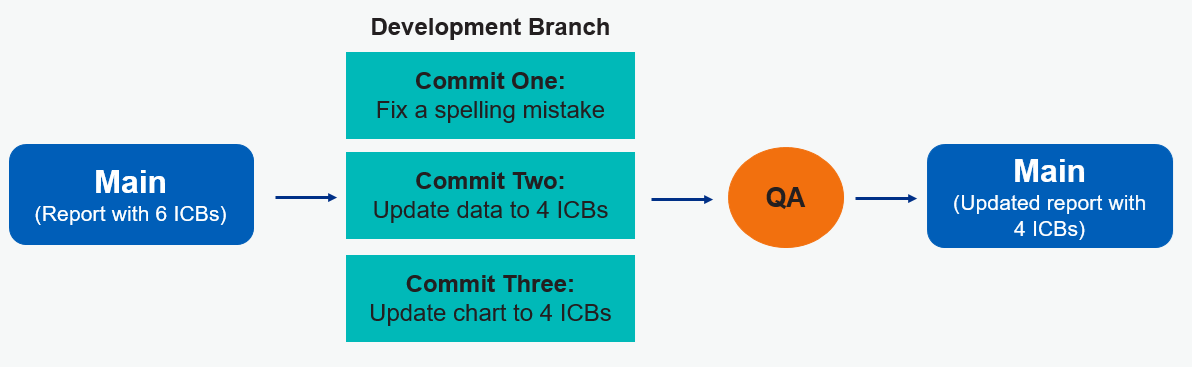 Situation: A few weeks later, the decision to move to 4 ICBs is cancelled, so we’re back to 6. This is a great use case for a git revert.
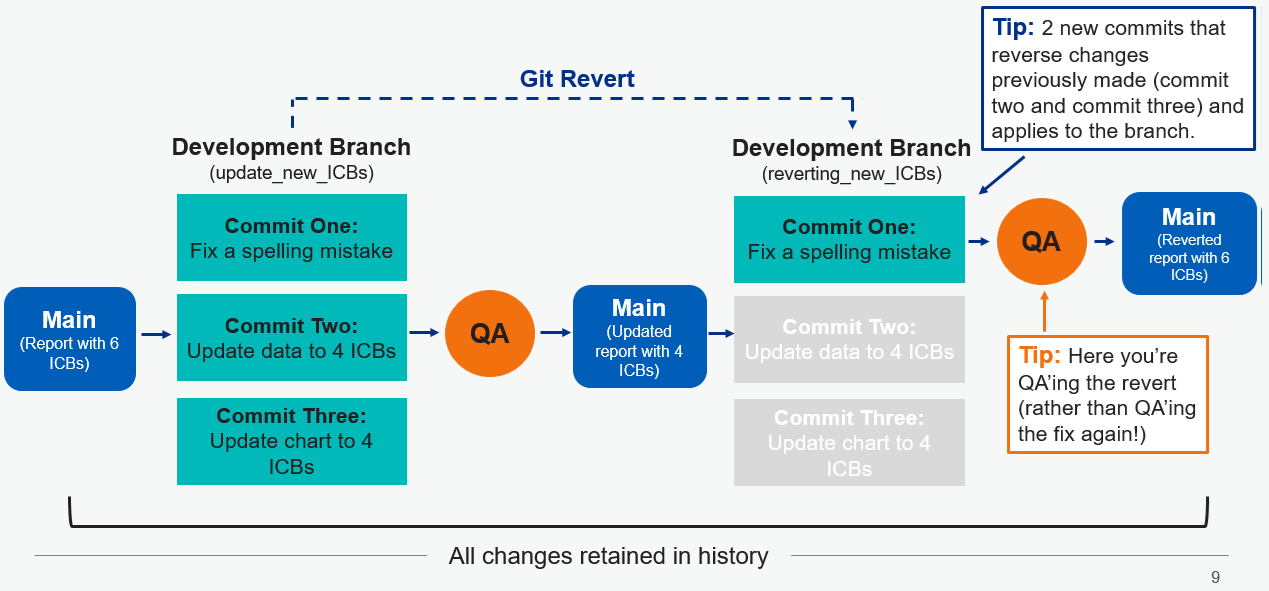
Git Revert on GitHub Desktop
One can use other integrated development environments but be careful as key words are not always used the same way. E.g. In VSCode documentation, it talks about how to “revert or undo a git commit” but actually describes git reset.
GitHub Desktop is the most simple to understand and use.
When can I revert?
- The commit can be pushed or not pushed
- Works on individual commits or multiple commits
How to revert
- Open GitHub Desktop
- Create a new branch from main
- In the history tab, right‑click the commit you want to undo
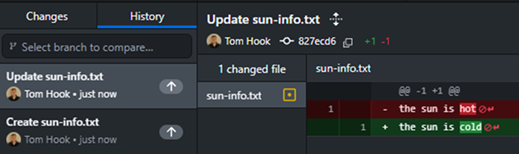
- Select Revert changes in commit
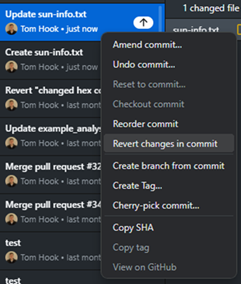
What happens next
- GitHub Desktop creates a new commit that reverses the selected changes
- The original commits remain visible in history
- You can review and push the revert like any other commit
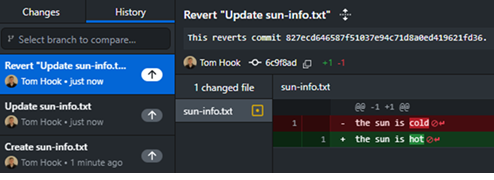
- Once you’re happy with the revert, create a pull request. This is important as reverts can still cause conflicts, and the result may affect files you didn’t expect.